Instructor Setup Guide (peerScholar)
🎯 Overview
The Group Member Evaluation activity enables instructors to collect structured peer ratings about individual contributions within group work. This approach helps increase accountability and address concerns about fairness in team projects.
Use this activity when you want students to:
- Evaluate teammates’ contributions
- Reduce social loafing
- Inform individual grade adjustments
Provide structured intra-group feedback
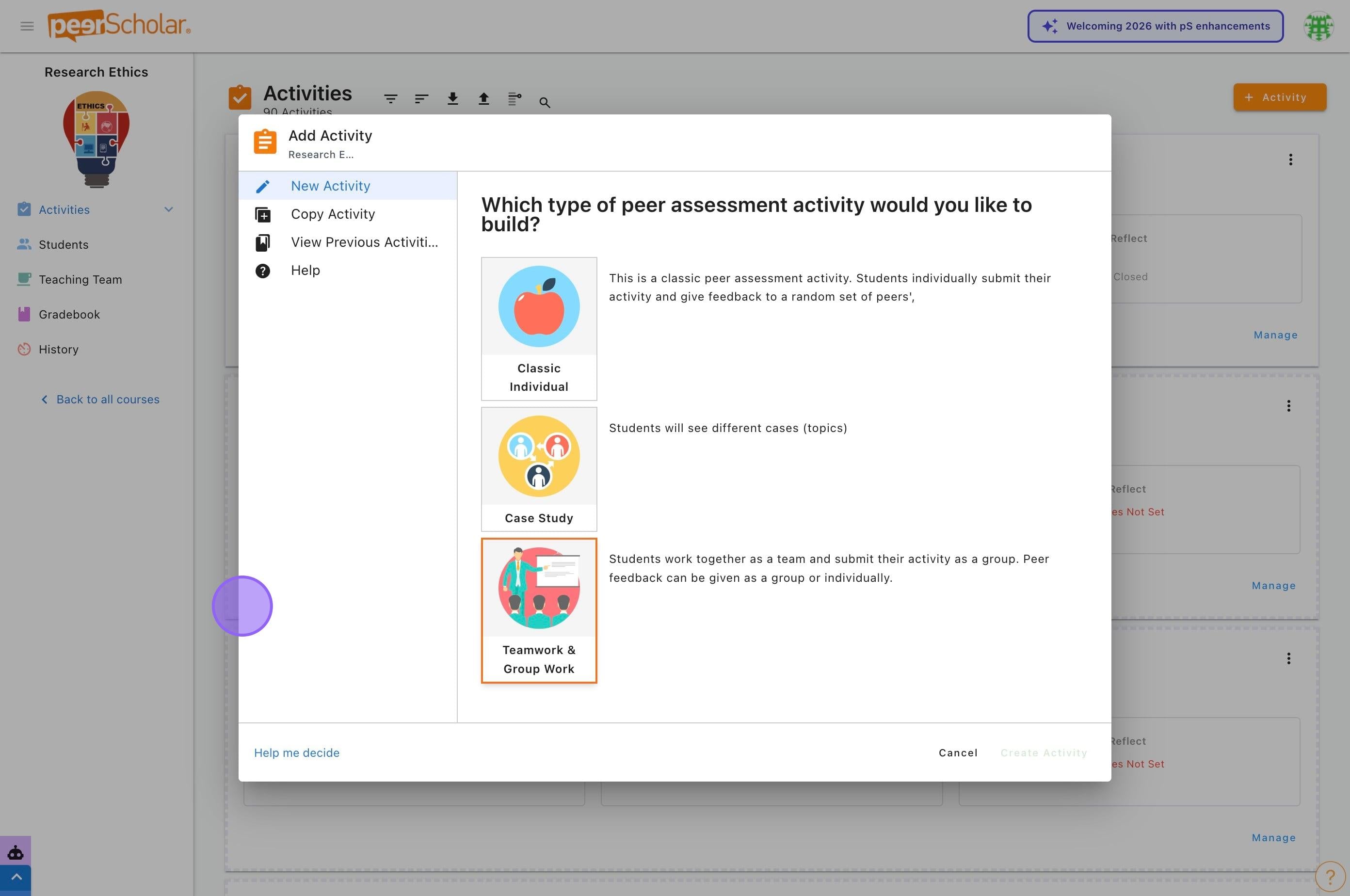
🚀 Step 1 — Add the Activity
- Enter your peerScholar course.
- Click Add Activity.
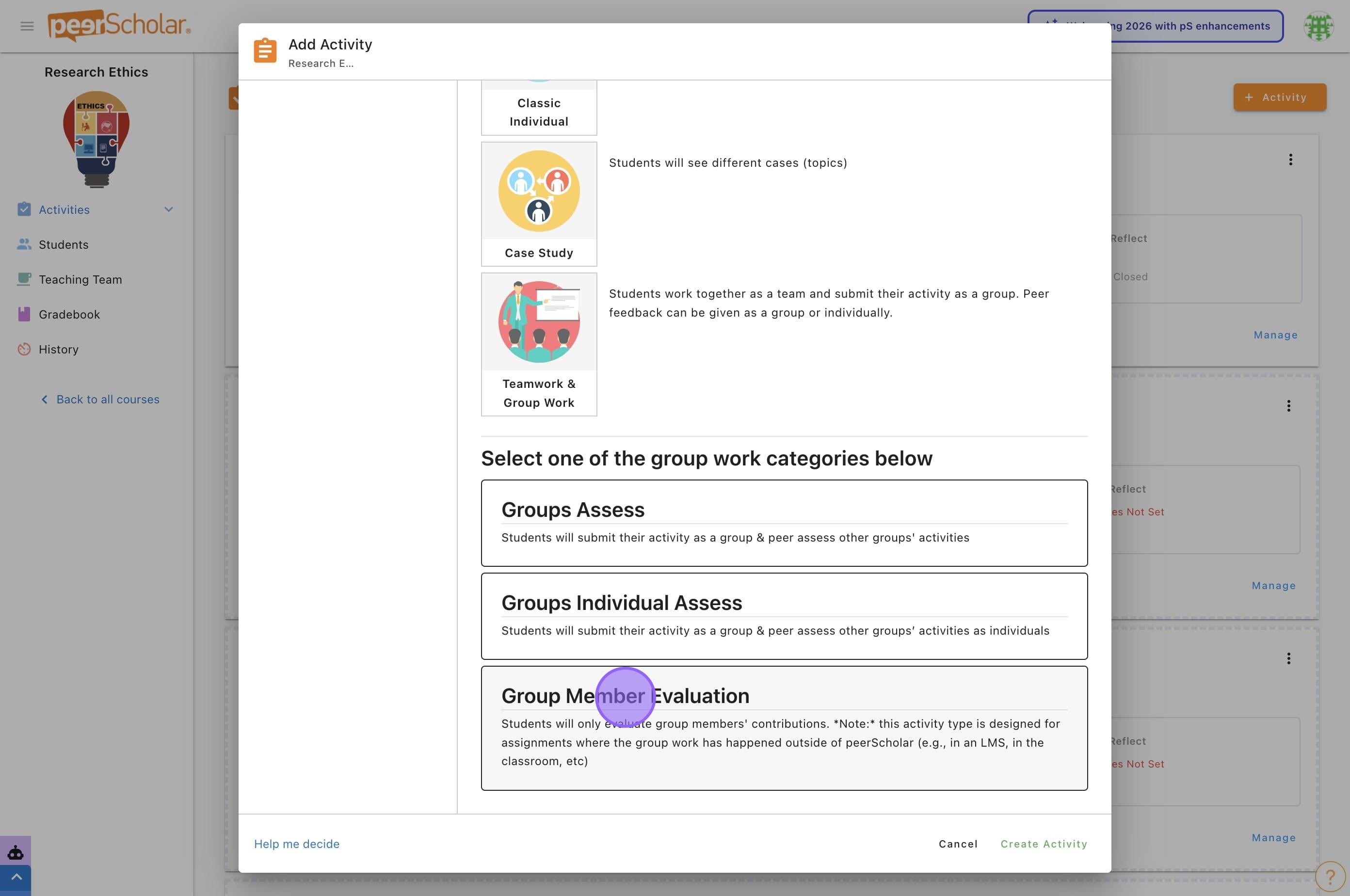
- Select Teamwork & Group Work.
- Choose Group Member Evaluation.
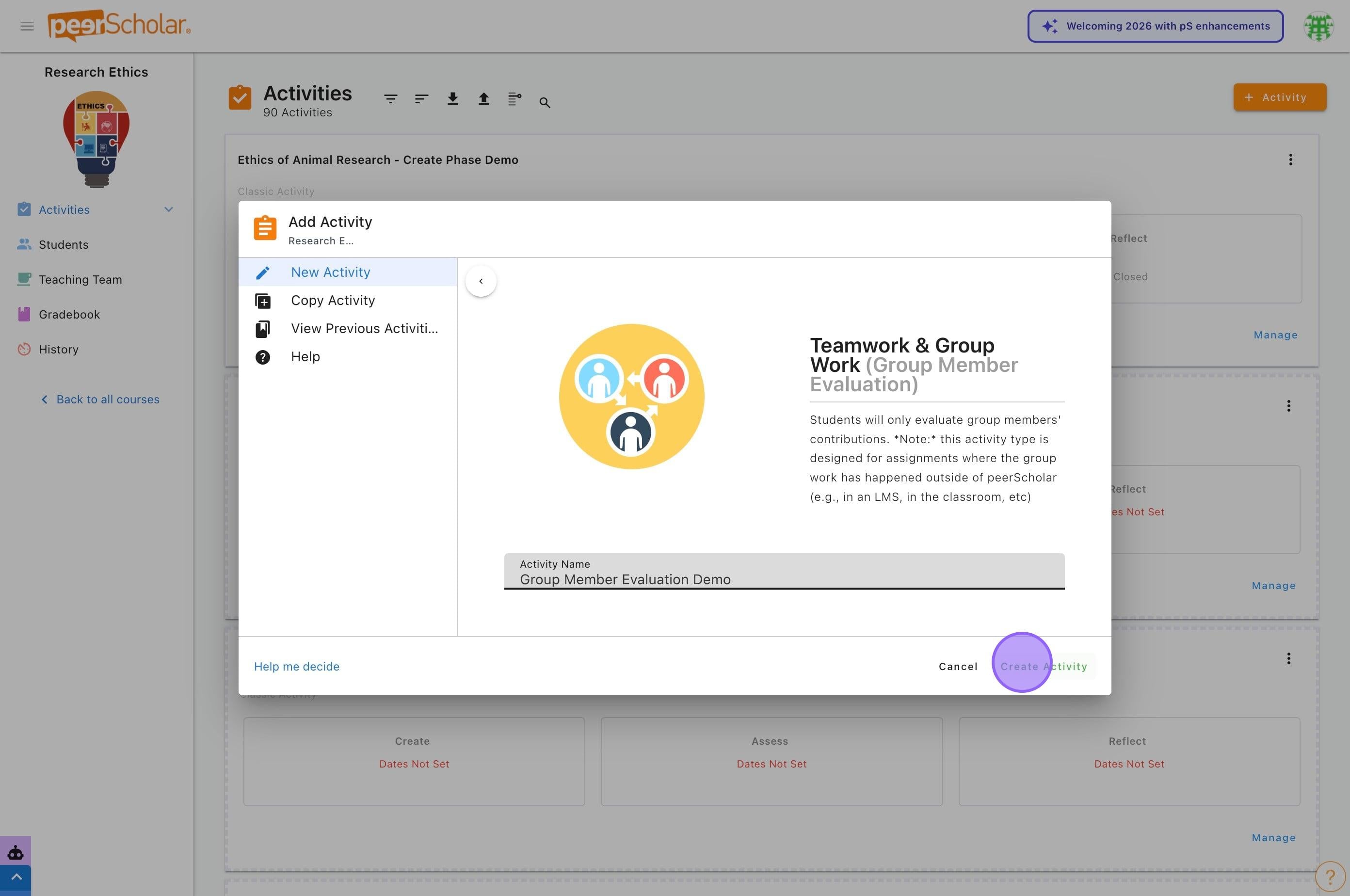
- Enter the activity details.
- Click Create Activity.
✅ Tips
- Use a clear activity name (e.g., Final Project Peer Evaluation).
🧩Step 2 — Build Activity (Instructions)
This section defines what students will do.
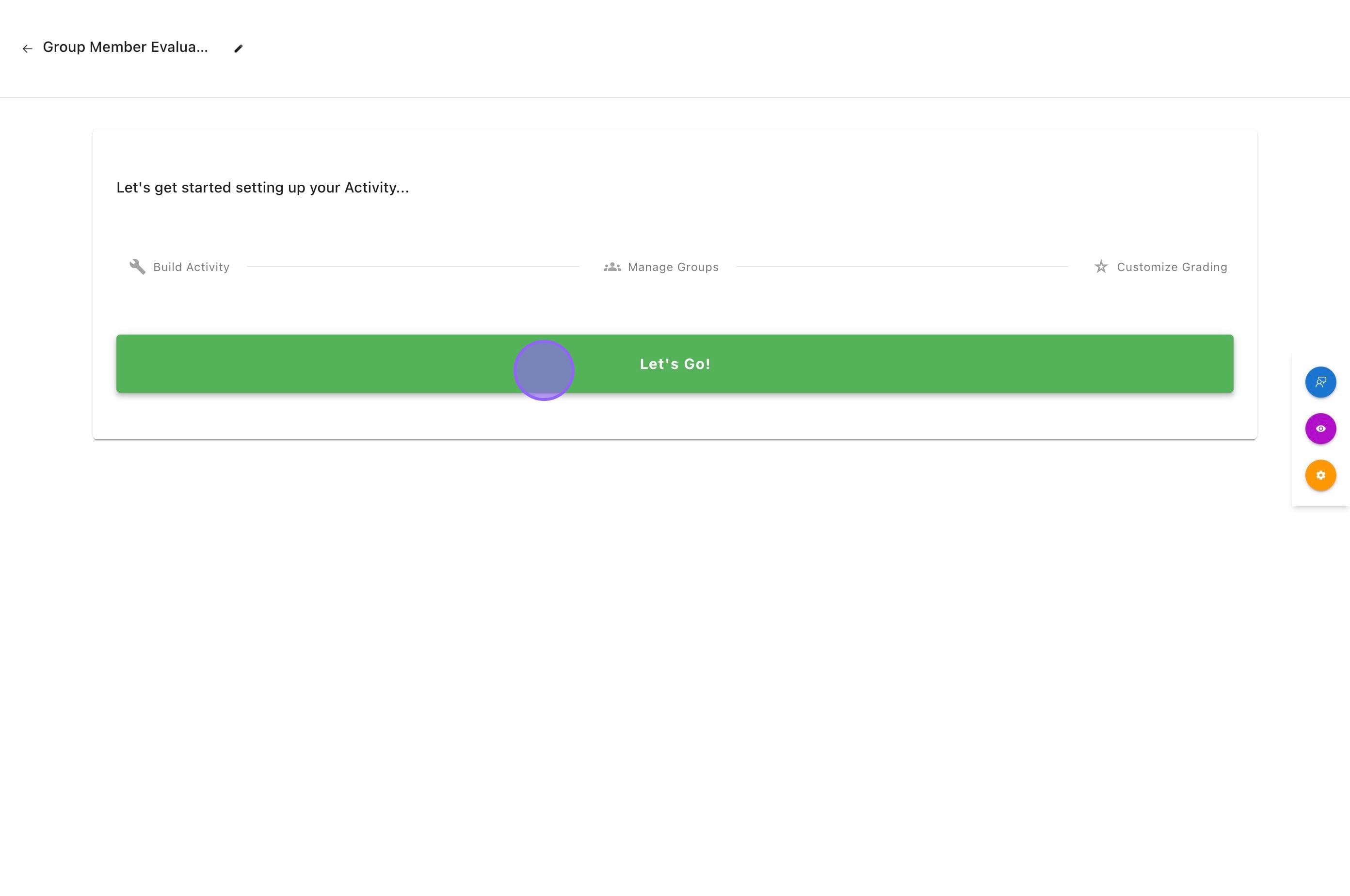
2.1 Add Instructions
- Click Let’s Go!
- Enter instructions in the rich-text editor.
- (Optional) Click + Attachments to upload files.
- Click Save.
💡 Recommended practice
Include:
- Purpose of the evaluation
- Whether self-evaluation will be included
- How results affect grades
- Professional expectations
⚙️ Step 3 — Configure Group Member Assessments
In this section, you will configure:
- who students evaluate
- whether results are visible and anonymous
- the evaluation criteria
- optional self-assessment settings
3.1 Select How Many Group Members Students Will Assess
By default, students assess all members of their group.
To configure
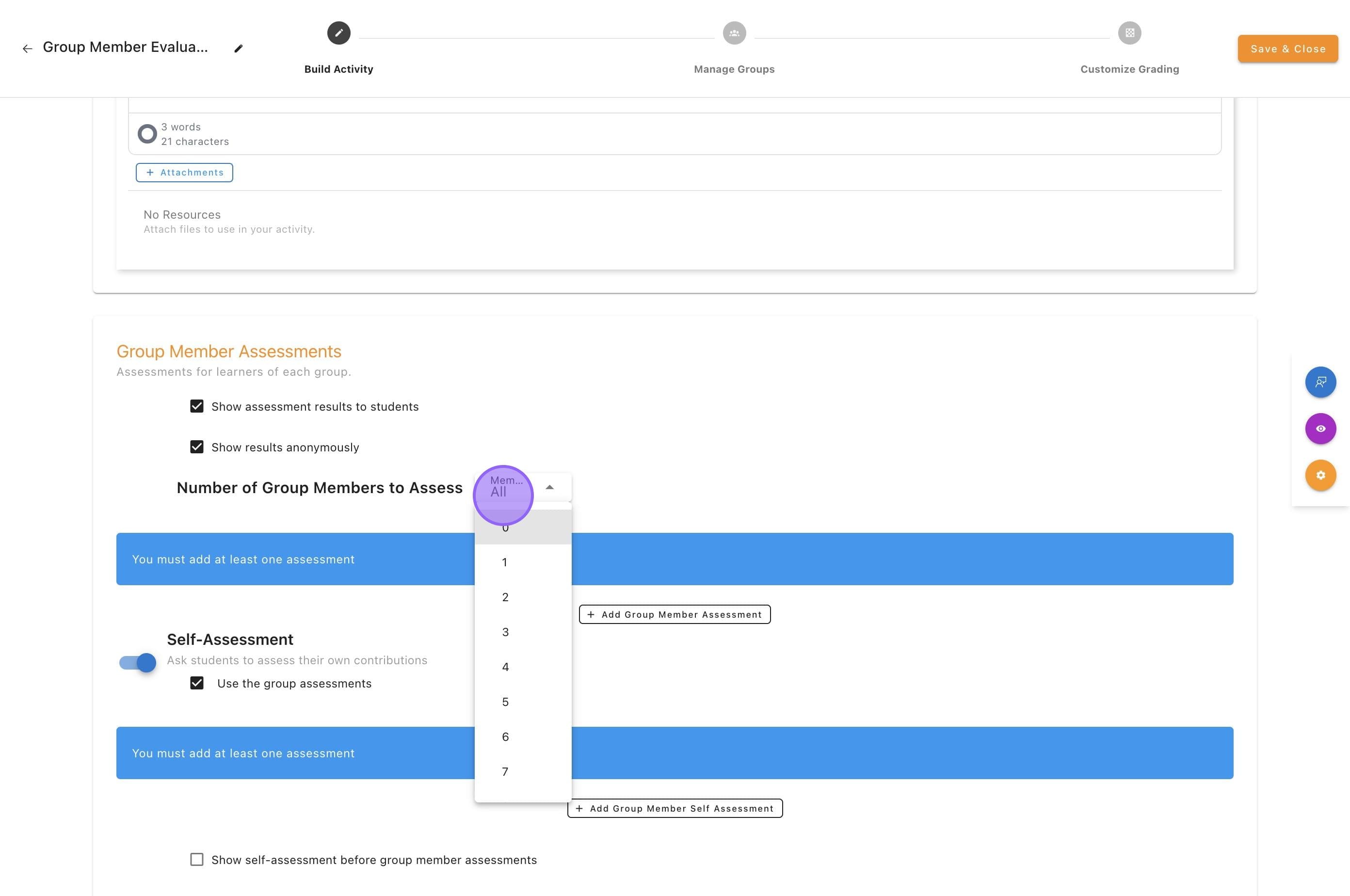
- Locate Number of Group Members to Assess.
- Open the Members dropdown (default: All).
- Choose one of the following:
All (recommended)
- Each student evaluates every group member
- Produces the most stable contribution calculations
Subset (custom number)
- Students evaluate a limited number of peers
- Useful in very large groups
3.2 Control Student Visibility & Anonymity
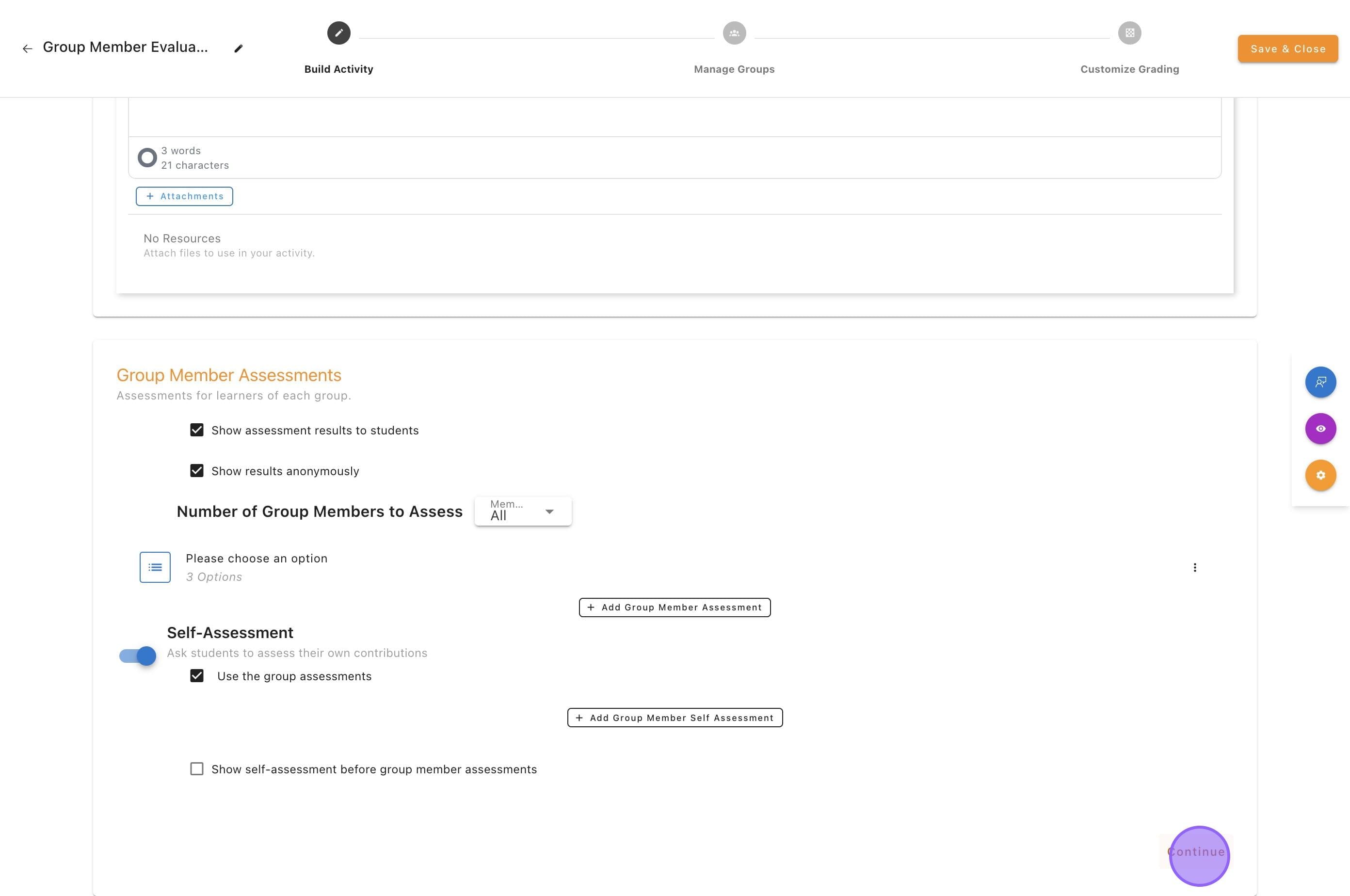
Next, choose whether students will see the results of group member ratings.
Available options
Show assessment results to students
- When enabled, students can view their received ratings
- When disabled, results remain instructor-only
Show results anonymously
- When enabled (recommended), student identities are hidden
- When disabled, raters are identifiable
3.3 Add Group Member Assessment Criteria
Now define the criteria students will use to evaluate their teammates.
Add assessment items
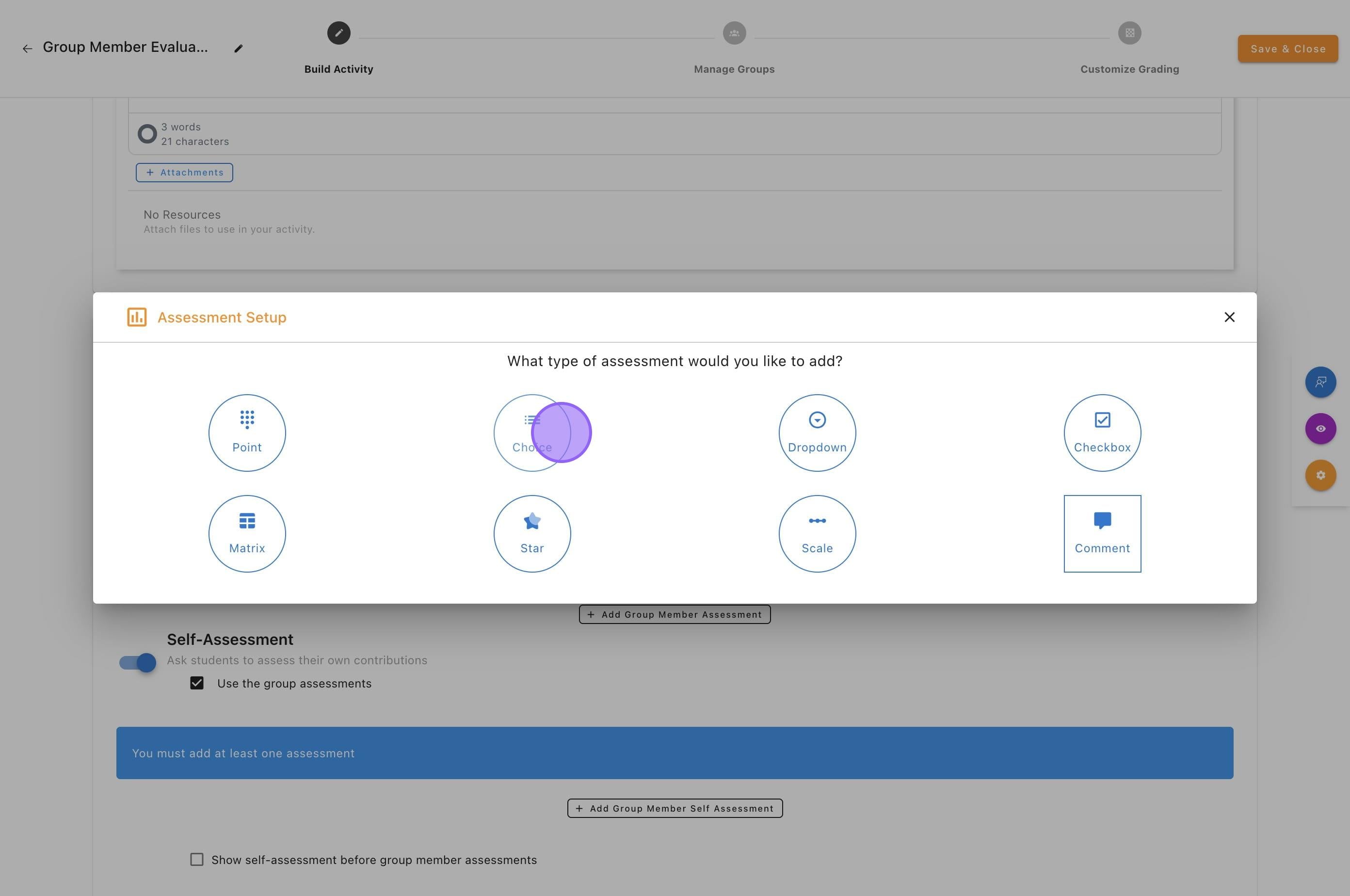
- Click Add Assessment Item.
- Select one or more assessment type(s).
- Enter the criterion prompt.
- Configure scale/options.
- Click Save.
peerScholar supports multiple assessment formats including:
- Choice
- Dropdown
- Matrix Rating
- Point
- Star Rating
🎯 Common contribution criteria
Instructors often include:
- Contribution to group work
- Communication
- Reliability
- Quality of work
💡 Recommended practice
Use behaviour-anchored descriptions (e.g., “Consistently met deadlines”) rather than vague traits.
3.4 Configure Self-Assessment (Optional)
Self-assessment allows students to evaluate their own contributions.
Step 1 — Enable Self-Assessment
Toggle Self-Assessment ON to allow students to rate themselves.
Step 2 — Choose Assessment Structure
You have two options:
Use the group assessments
- Self-assessment uses the same criteria as peer ratings
- Faster setup
- Ensures alignment
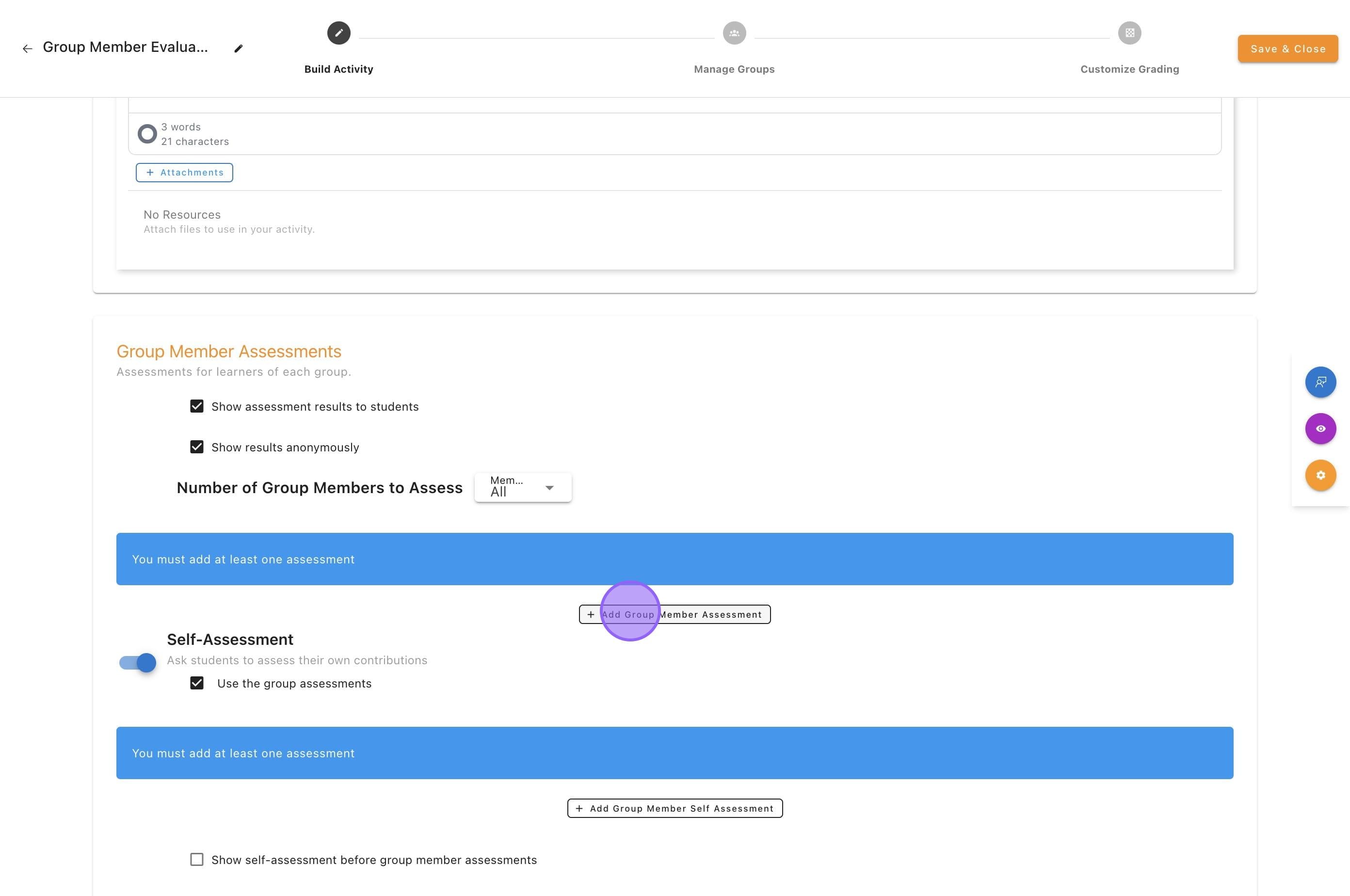
Create separate self-assessment
- Click + Add Group Member Self Assessment
- Define different criteria
- Use when you want reflective prompts
Step 3 — Choose Assessment Order (Optional)
You may enable:
Show self-assessment before group member assessments
When enabled
- Students complete self-assessment first
- Encourages reflection before peer judgment
When disabled
- Students assess peer group members first
- Self-assessment comes afterward
👥 Step 4 — Manage Groups
Students must be properly grouped before the activity opens.
4.1 Create Groups
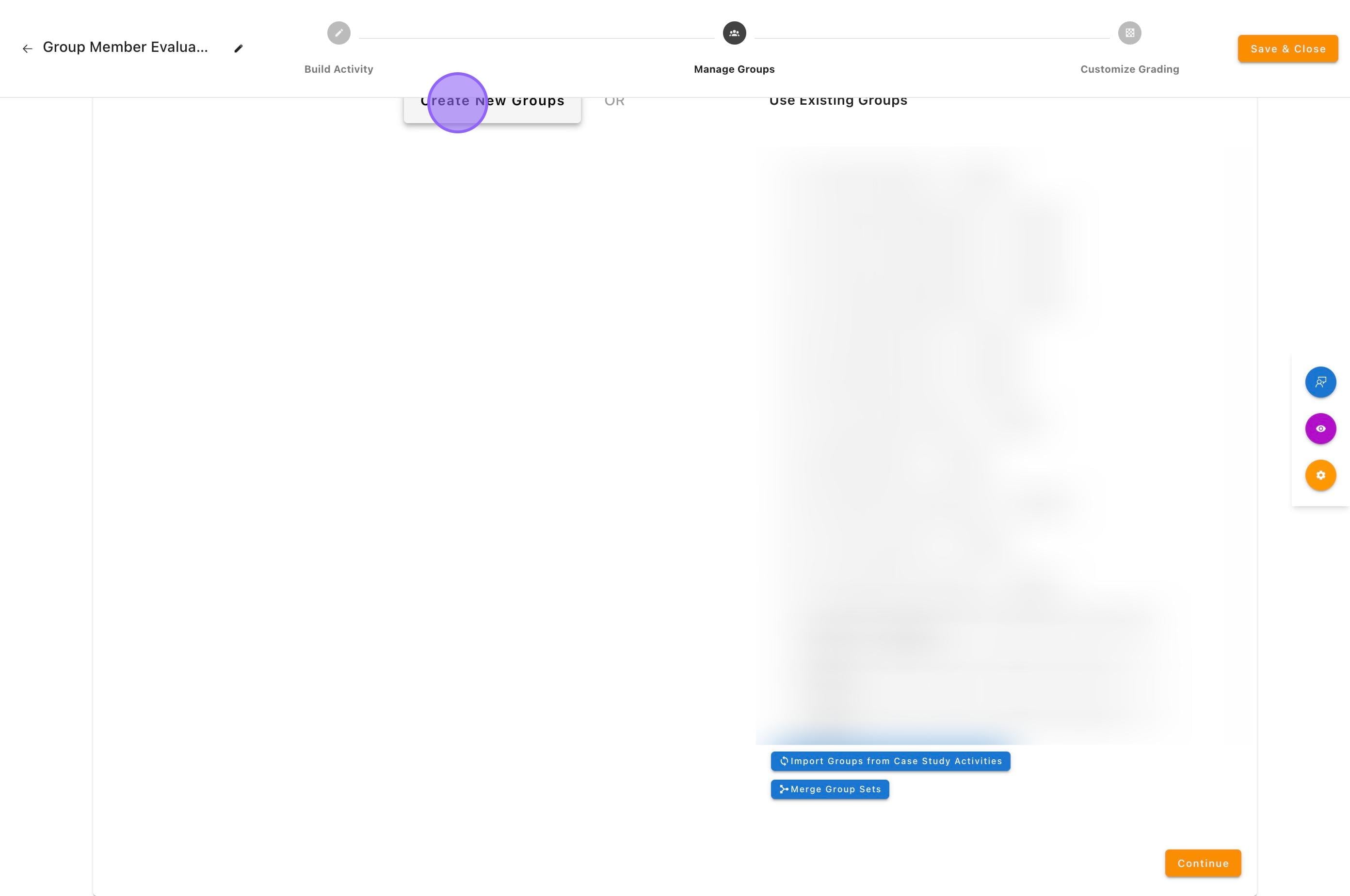
- Go to Manage Groups.
- Click Create New Group.
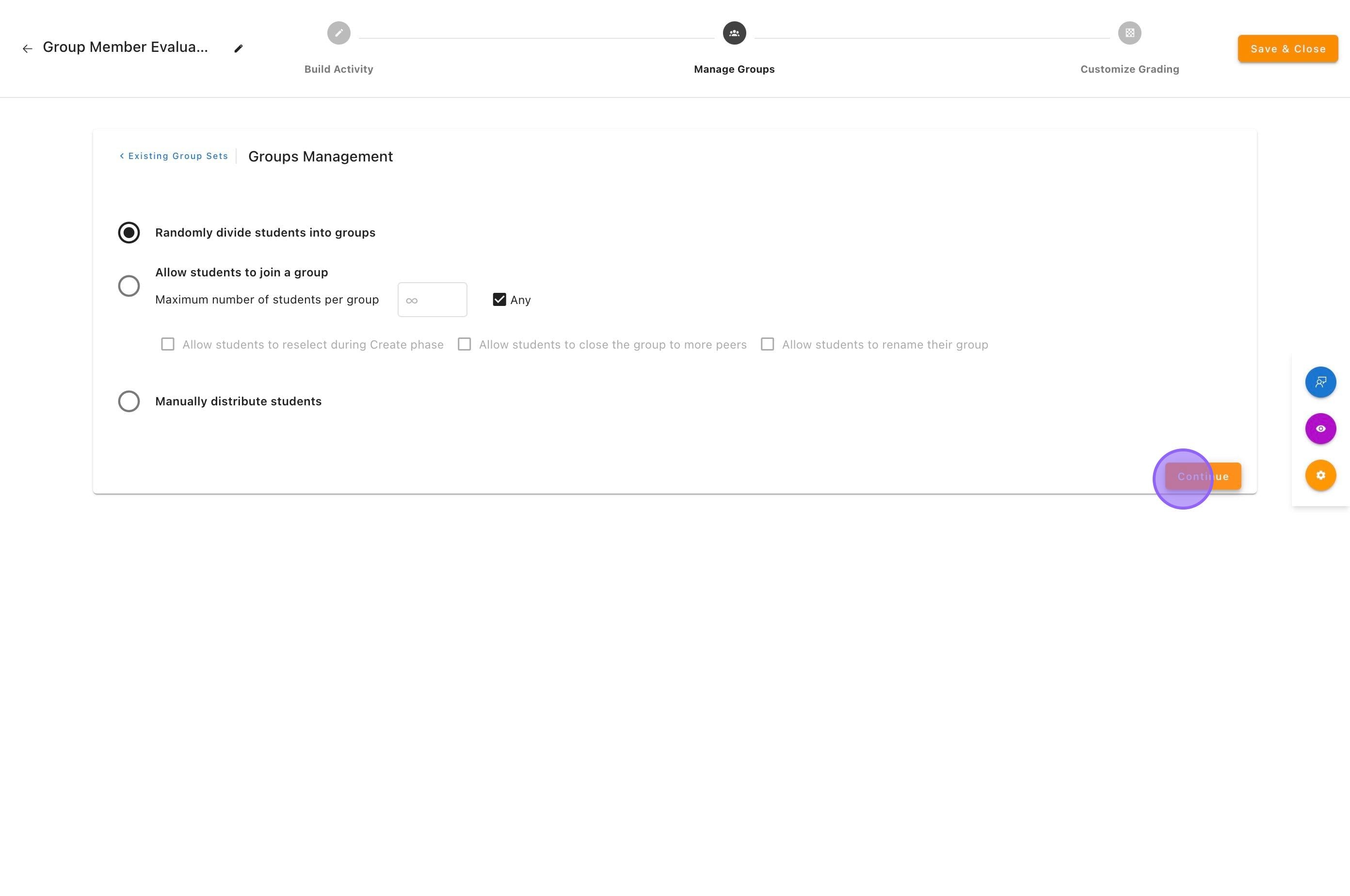
- Choose a grouping method:
- Random
- Allow students to join
- Manual distribution
- Click Continue.
⚠️ Important
Students must be assigned to groups before the activity opens or they cannot complete evaluations.